How to resize a photo and signature for Indian government forms
The exact dimensions and file sizes SSC, UPSC, Railway and passport applications ask for — and how to hit them without desktop software.
Entrovix AIJul 12, 2026 6 min read
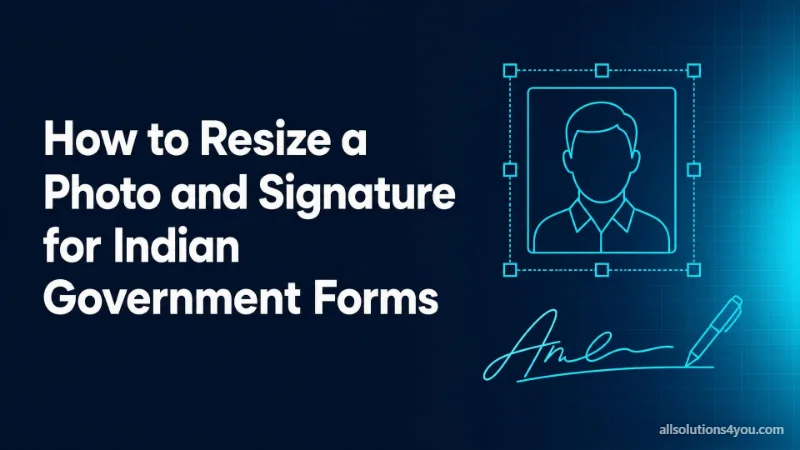
Government application portals are strict in a very specific way. They ask for an exact pixel size and a maximum file size in kilobytes, reject anything outside it, and rarely explain which of the two constraints your upload failed.
The awkward part is that no ordinary image editor has a "make this under 50 KB" control. Quality and file size are related non-linearly and depend on the image itself, so hitting a target means trial and error — unless something does the searching for you.
The requirements that come up most
| Application | Dimensions | Max size |
|---|---|---|
| Passport (India) | 413 × 531 px | 50 KB |
| SSC exam photo | 200 × 230 px | 50 KB |
| UPSC exam photo | 350 × 350 px | 300 KB |
| Railway (RRB) photo | 240 × 320 px | 100 KB |
| Signature (most portals) | 280 × 100 px | 20 KB |
| PAN card photo | 213 × 213 px | 30 KB |
Treat this table as a starting point, not gospel. Portals change their requirements, and the instruction page for your specific application is always the authority.
Why the upload keeps failing
- 1Wrong dimensions. Portals often reject rather than rescale, and a photo that is one pixel over fails as surely as one that is double.
- 2File too large. A modern phone photo is 3–5 MB; a 50 KB limit is roughly a hundredth of that.
- 3Wrong format. Most portals accept JPEG only. PNG and HEIC — the default on iPhones — are frequently refused.
- 4Transparent background. A PNG with transparency converted to JPEG turns the transparent area black unless it is filled first.
- 5Scanned signature too dark or too light. Scan in colour at 200 DPI, then convert, rather than scanning in black and white.
Do it in the browser, not on a website that uploads
This matters more than it sounds. A passport photo, a signature and an ID scan are exactly the material used for identity fraud. Many free resizing sites upload your file to a server, process it there, and are vague about what happens to it afterwards.
There is no technical reason to upload an image just to resize it. Browsers have been able to do this locally for a decade.
Our image tools run entirely in your browser using the canvas API. You can confirm it: open your browser's developer tools, switch to the Network tab, and process an image. No request is made, because the file never leaves your machine.
Practical tips
- Start from the original, not from an already-compressed copy. Each JPEG save loses detail permanently.
- Photograph against a plain white or light wall in daylight — most portals require a plain background.
- Sign on white paper with a dark pen and photograph it straight-on rather than at an angle.
- Keep the original file. If a portal rejects your upload you will want to start again from full quality.